
Step 1. Log in to your Alphanet Client Area.
The first step is to login to your Alphanet Client Area, this can typically be accessed by going to https://account.alpha.net.bd/login

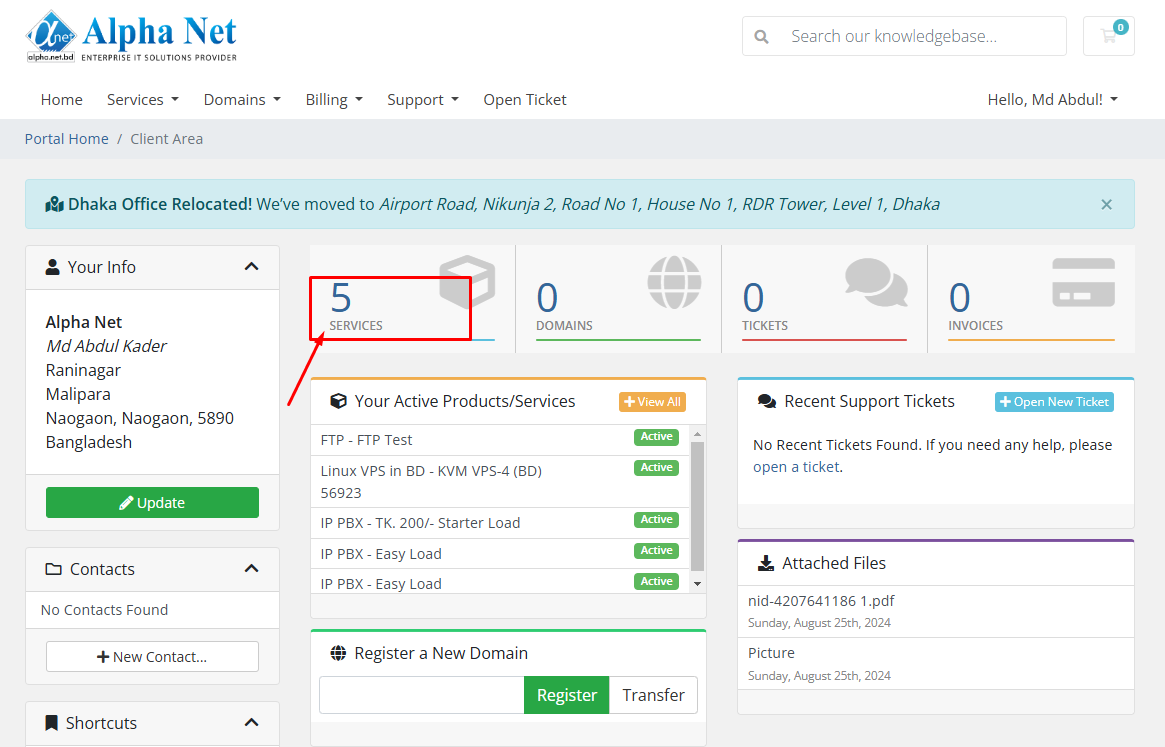
Step 2: Click this SERVICES Button.
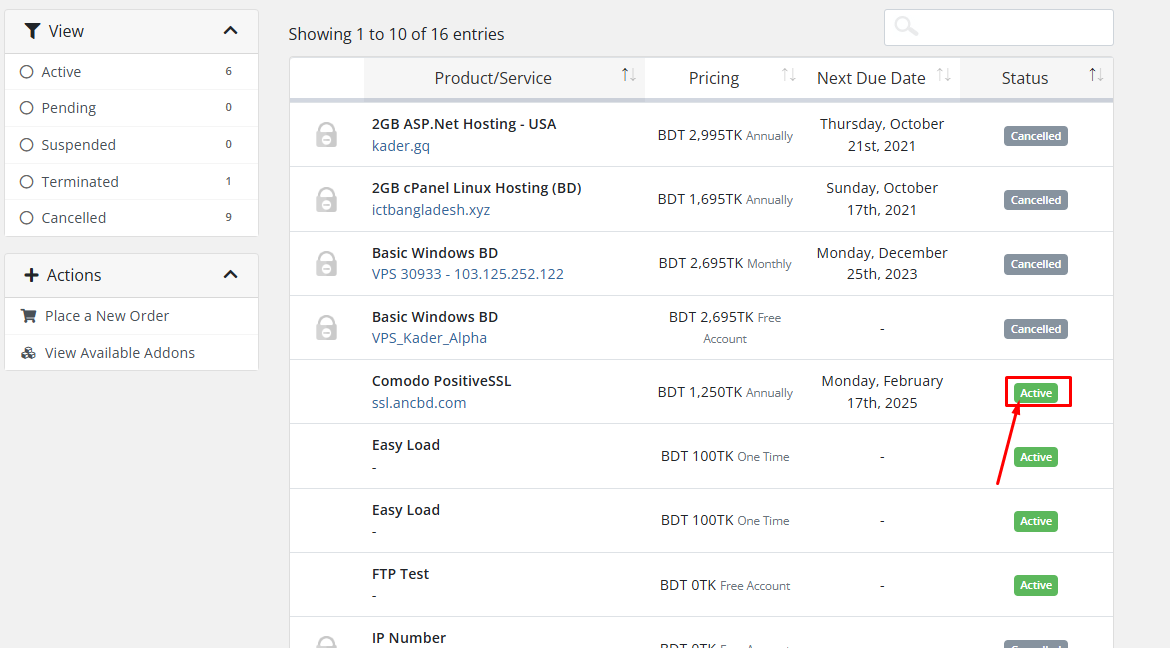
Step 3: Please select your SSL service, Then Click this Active button.
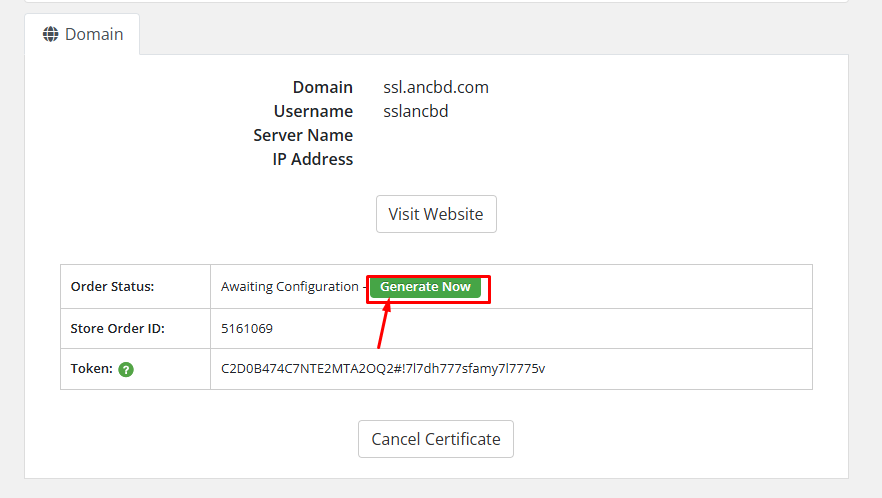
Step 4: Please Click this Generate Now button.
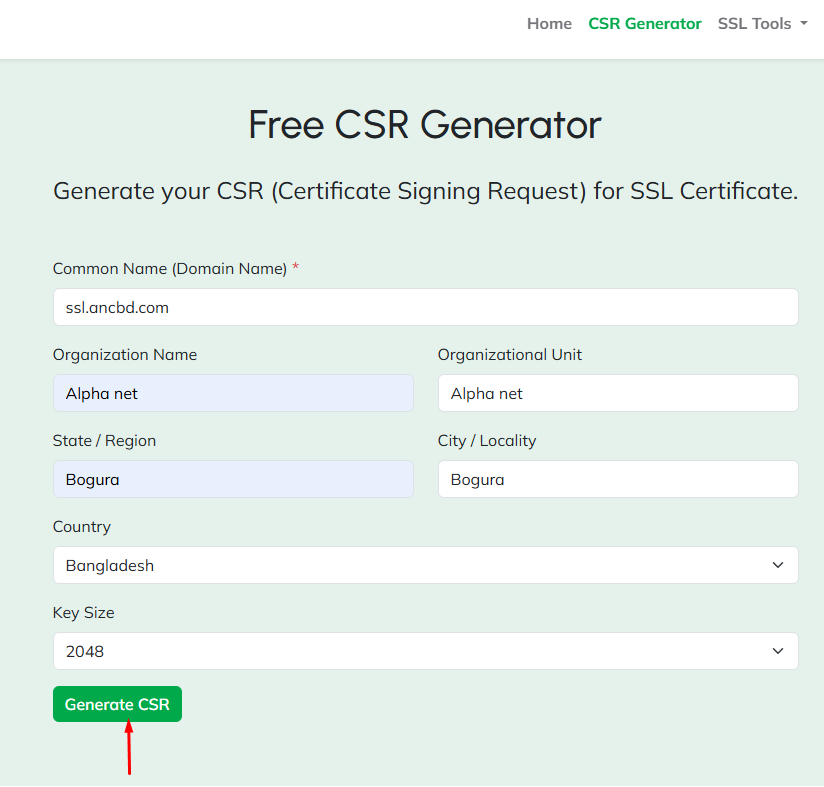
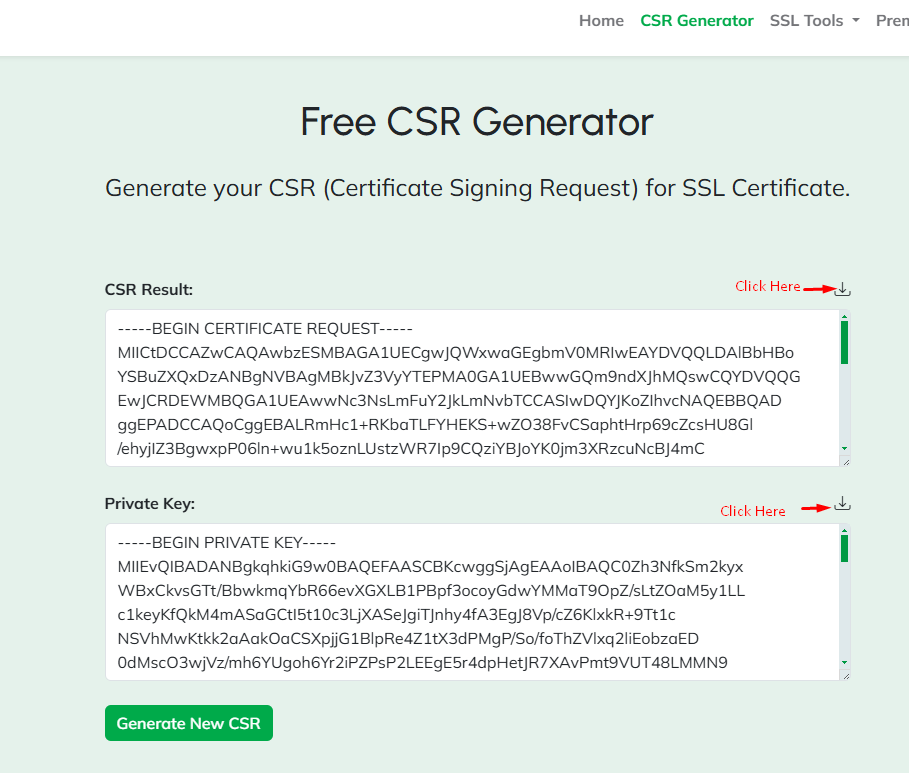
Step 5. After clicking Generate Now, you will need to generate a CSR with your domain name. If you want, you can generate a CSR from the website "https://w3ssl.com".
During CSR Generator, Common Name (Your Domain Name), and must use "2048" in the Key Size. After filling out the CSR Generator form, click on the "CSR Generator" button.
Step 6. Please download the CSR key and Private Key file.
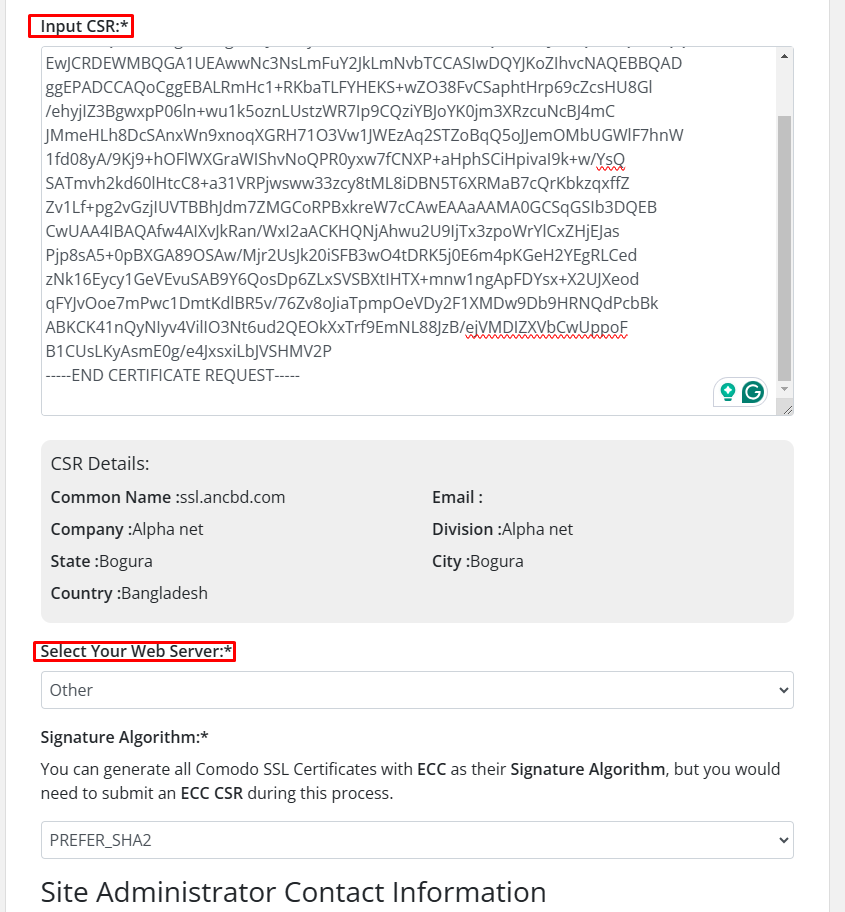
Step 7. Input CSR:* Paste your downloaded CSR file in the blank space. Then select "Select Your Web Server:*" other option.
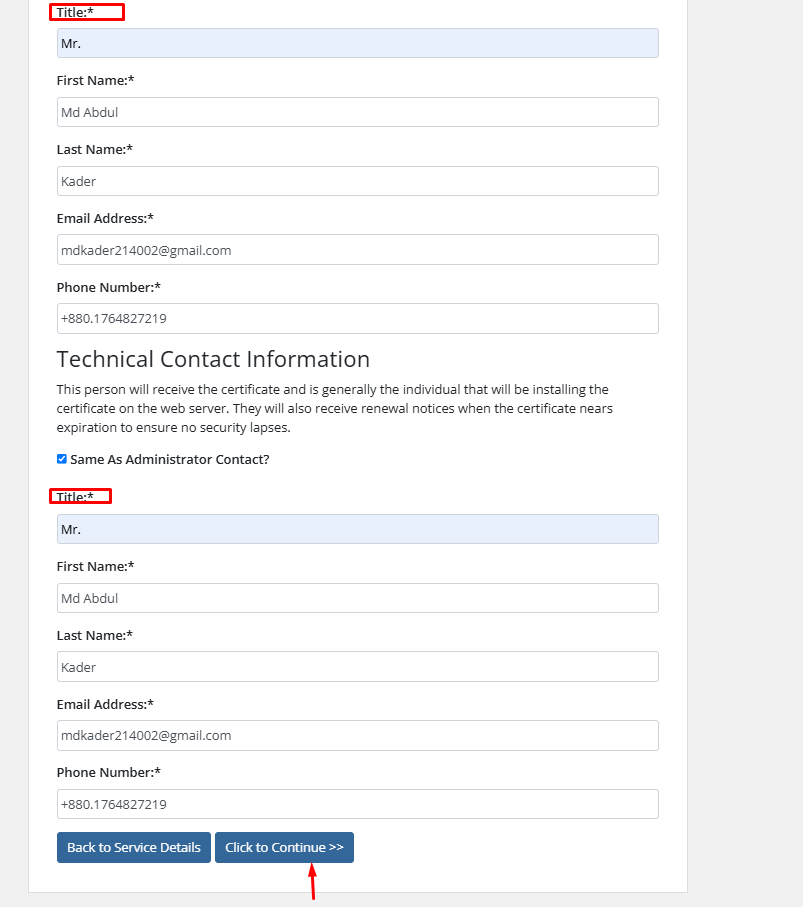
Step 8. Please Set Mr in Title:* and click on the "Click to Continue" button.
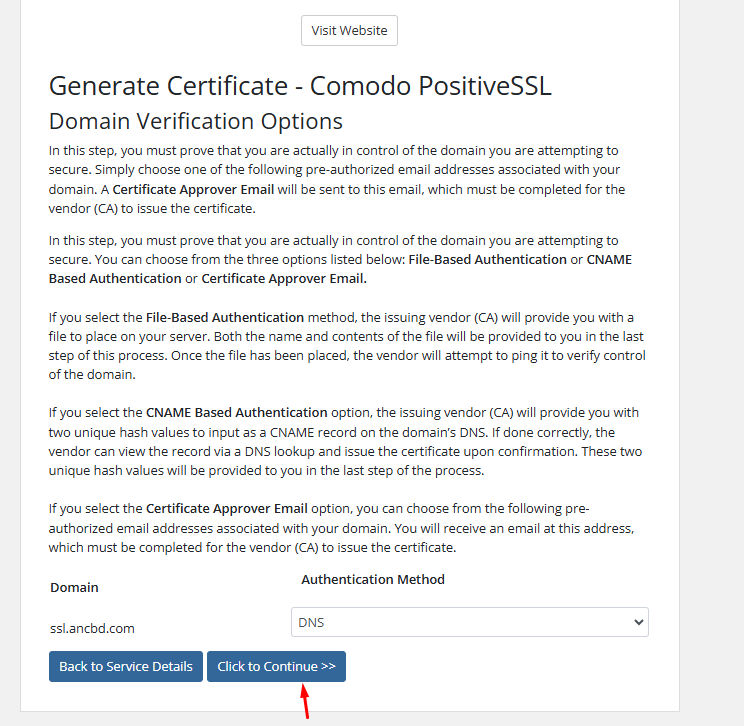
Step 8. Complete Domain Verification to download the SSL Certificate. You can complete Domain Verification via DNS, HTTP, or Email if you want.
Select your Verification Method and click on the Click to Continue button.
Step 9. After clicking on the Click to Continue button, add the record you get to your domain for SSL Verification. After adding the record, click on the "Back to Client Area" button.
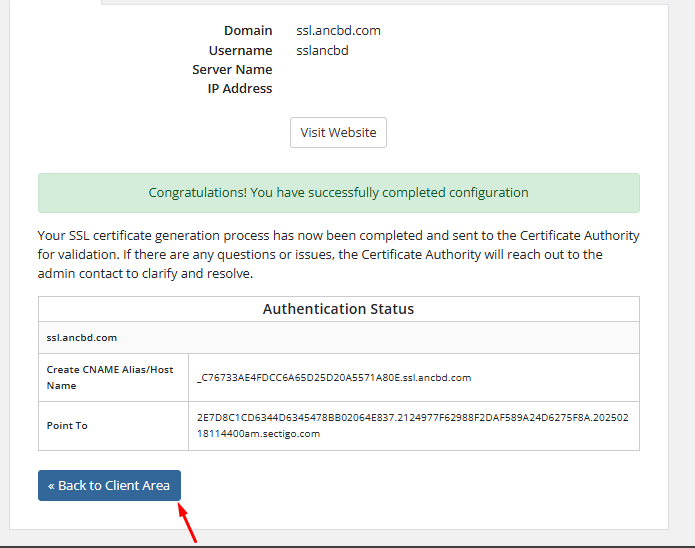
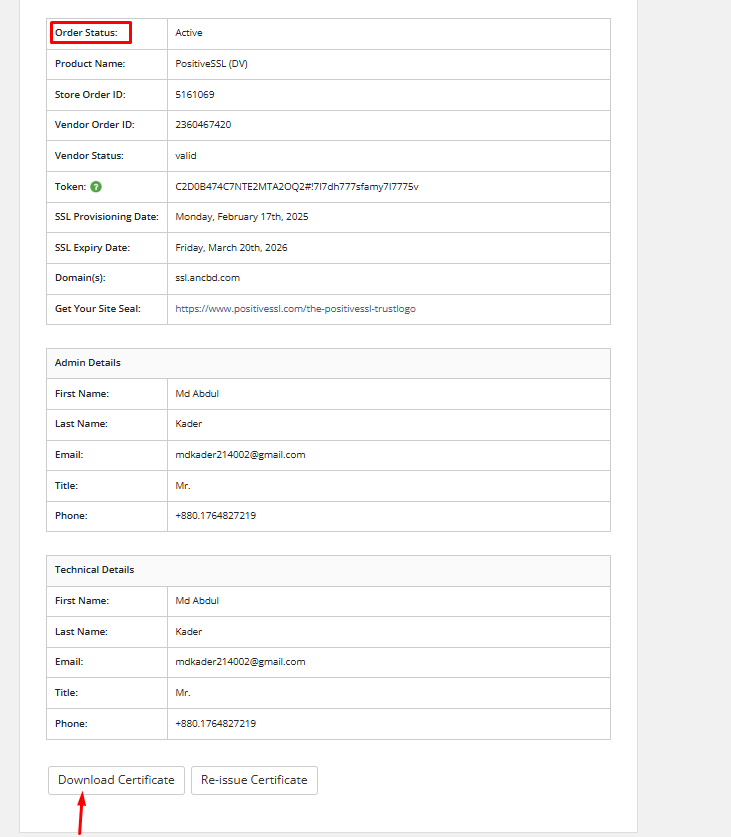
Step 10. After adding your record, you will see "Order Status: Pending". Wait for some time and then you will see Order Status: Active.

Step 11. After the Order Status: Active, you can download the SSL certificate from "Download Certificate" Option.
Congratulations !! Now you know how to download a premium SSL certificate from the Alpha Net client area.